Marketplace Search overview
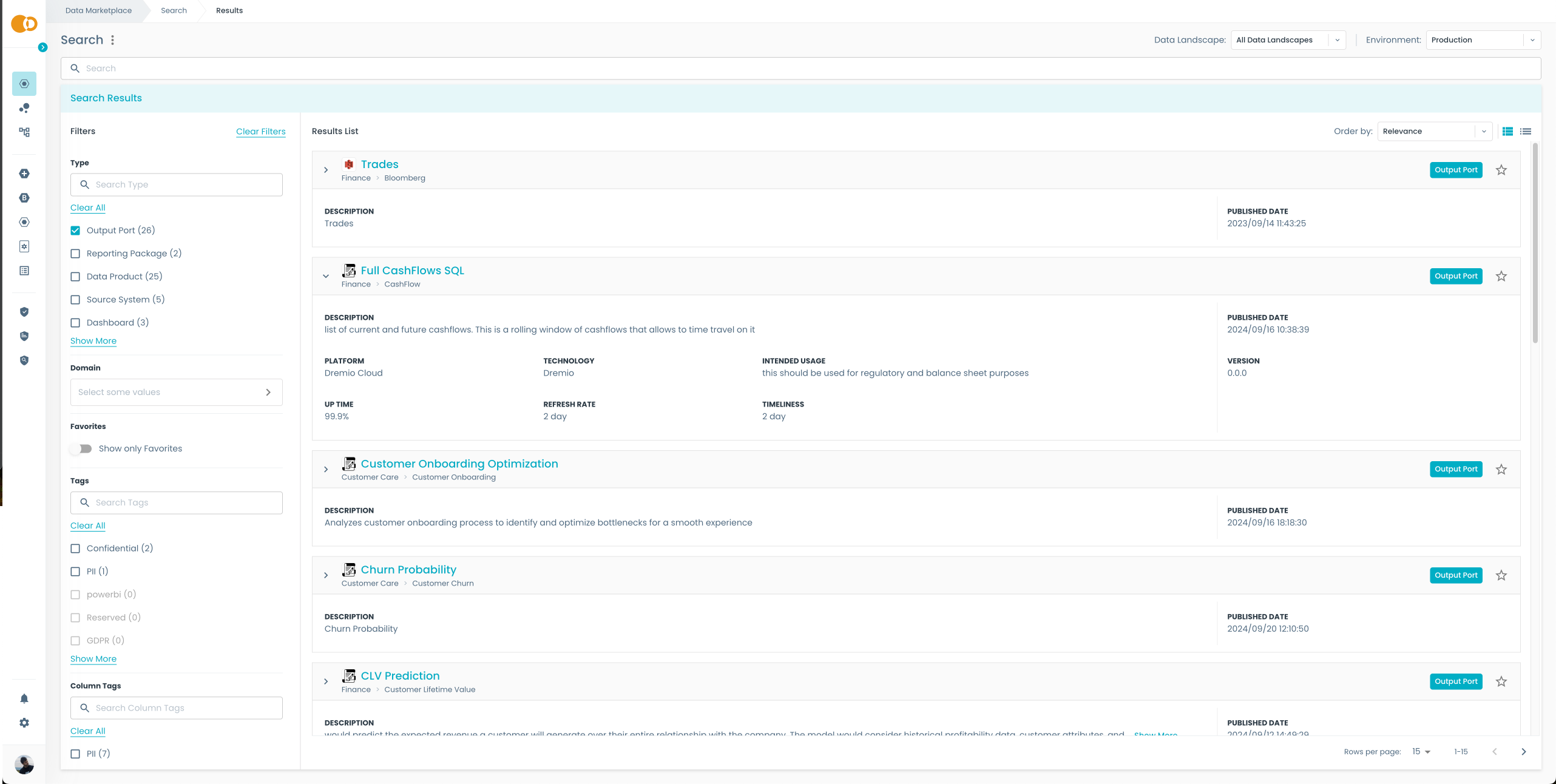
One of the main functionalities of the Witboost Marketplace is the Marketplace Search; it features a user-friendly interface that allows users to search, filter, and view the details and metadata of the data products. The marketplace only shows entities that are consumable, or have a consumable child. The interface can also be customized to fit the necessity of the organization.
Customize search results ordering
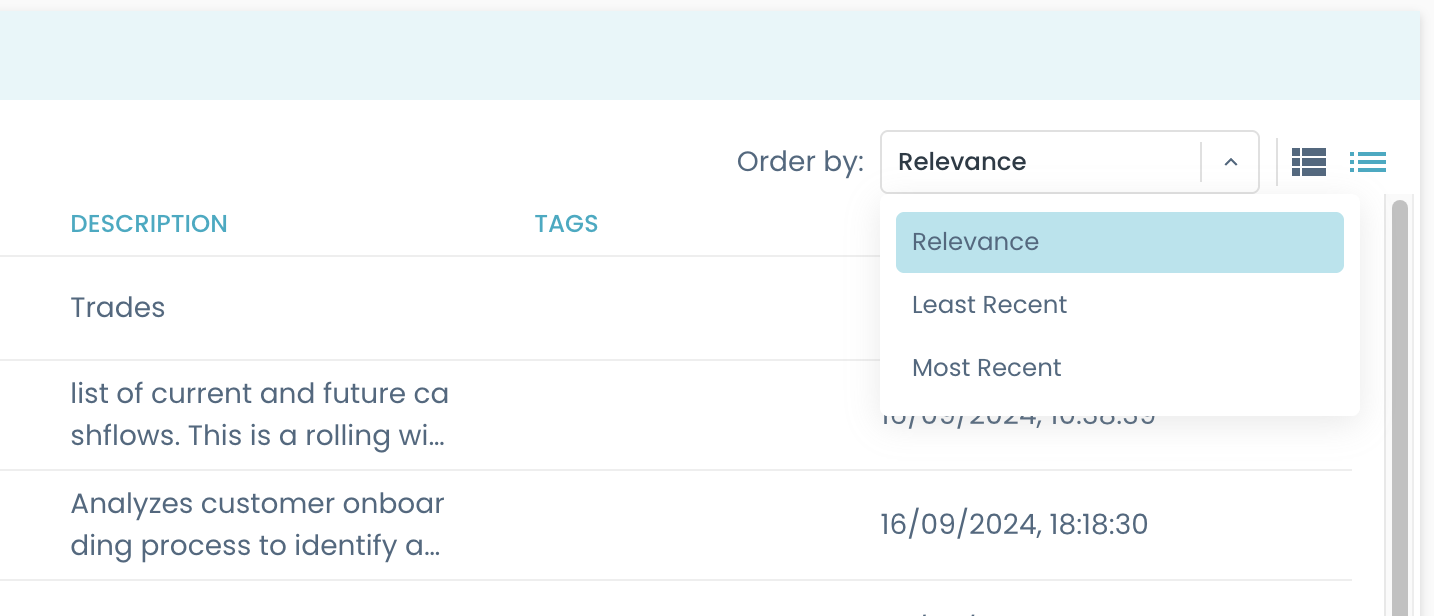
When you write a query in the search bar, the search results are ordered by relevance. The UI allows users to select a field to sort the search results by using the Order by: dropdown.
The sorting options can be configured by the platform administrators, who can choose which fields will be shown to the end users as sorting options.
By default, the Order by: dropdown has the following options: Relevance, Least Recent, Most Recent.
Sorting structure
Each sorting option is an object composed of the following properties:
field: The field name in the document. For nested fields, you can use dot notation to access them.ascLabel: A human-readable label for the ascending order that will be shown in the UI.descLabel: A human-readable label for the descending order that will be shown in the UI.
These properties can be set in the configuration file under ui.appConfig.mesh.marketplace.ui.searchPage.orderBy property as follows:
# inside your values.yaml
ui:
  appConfig:
    # ... other configurations  ...
    mesh:
      marketplace:
        ui:
          searchPage:
            orderBy:
              - field: ...
                ascLabel: ...
                descLabel: ...
              - field: ...
                ...
For each sorting option, the search functionality will give the opportunity to select in which order (descending or ascending) to sort a specific field.
Customize displayed metadata
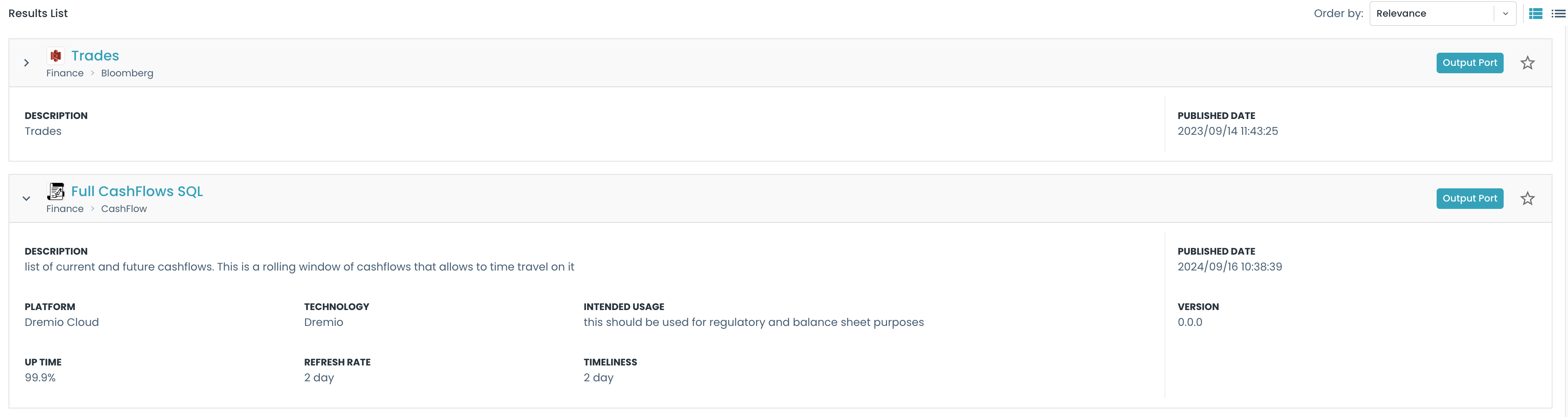
The metadata displayed in the search results can be customized to fit the organization's needs. To customize the metadata, refer to the Custom View feature.
Customize search filters
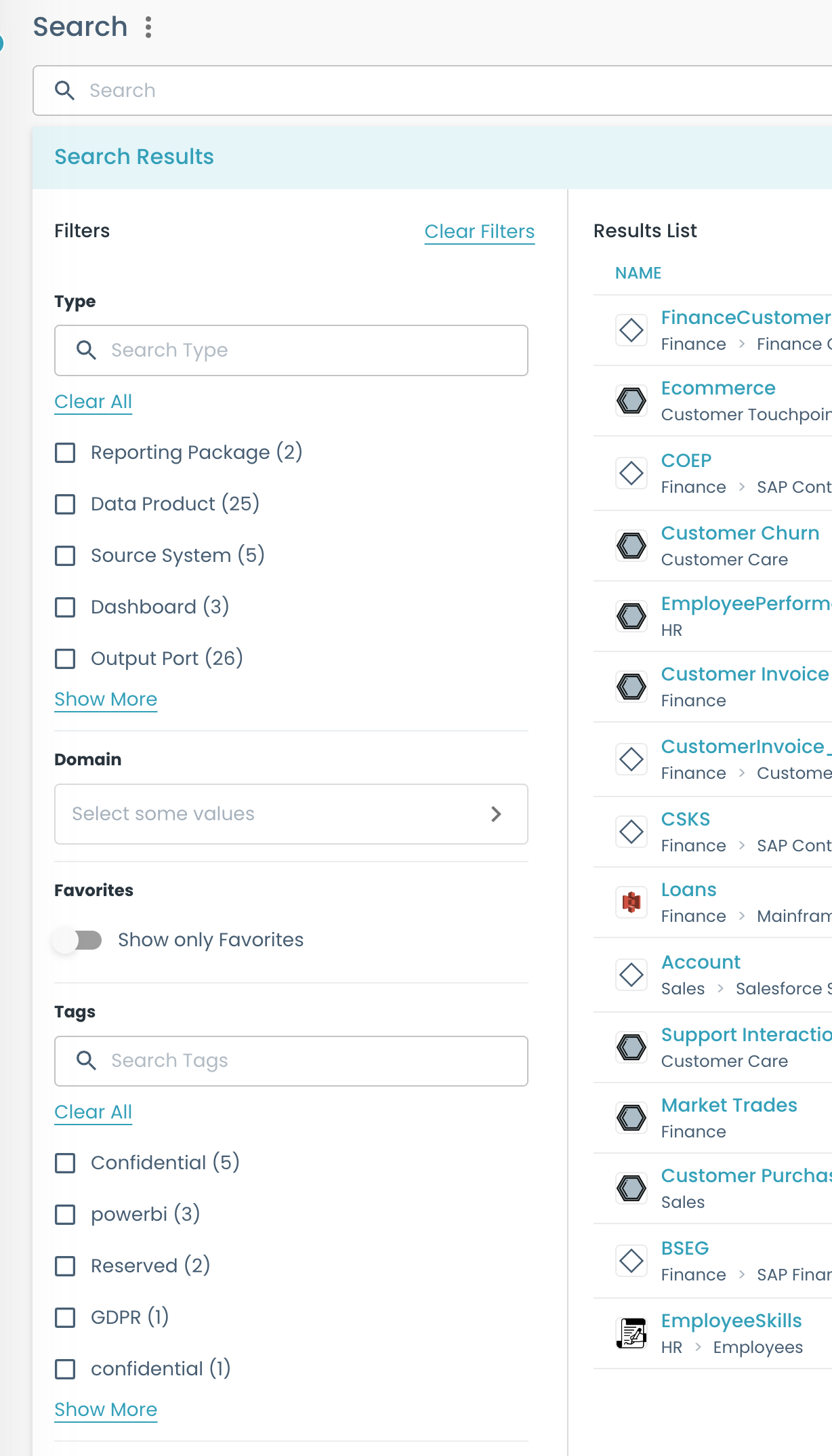
To customize the search filters, refer to the Power Search Filters functionality.
Customize default results view
The default view of the search results can be customized to fit the organization's needs.
There are two possible views: cards and table. The default one is the cards view.
To change the default view, you need to set this in the configuration file:
# inside your values.yaml
ui:
  appConfig:
    # ... other configurations  ...
    mesh:
      marketplace:
        ui:
          searchPage:
            defaultView: table # or cards