Customize the Marketplace
This guide will walk you through customizing the Marketplace in Witboost. Witboost can fully customize data product descriptors and, in general, the metadata model. Also, Witboost is not only for data products; it can be configured to host whatever data landscape you want. For this reason, it is essential to have a complete level of customization at the UI level as well.
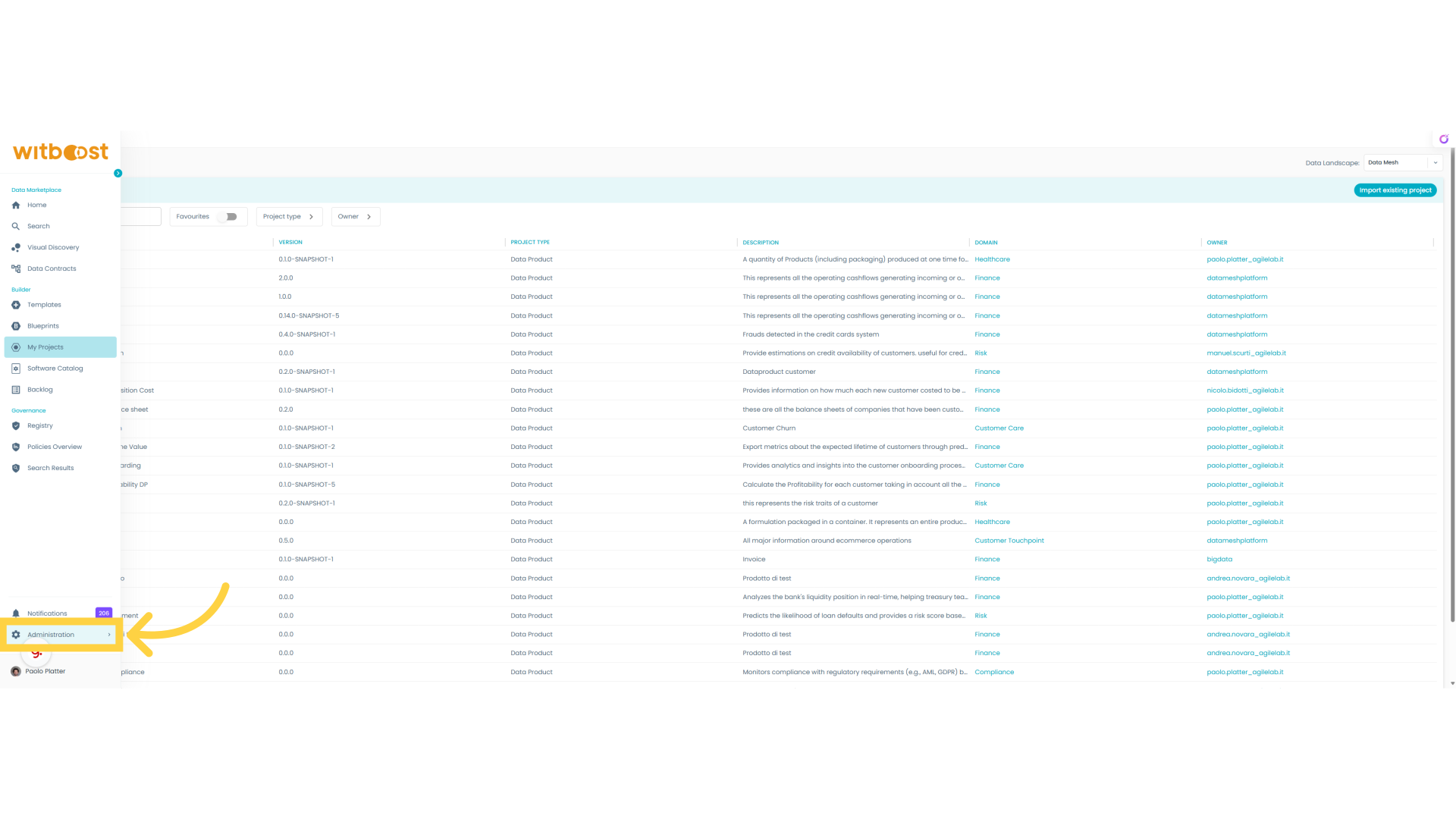
1. Administration Panel
Let's go in the administration panel of Witboost
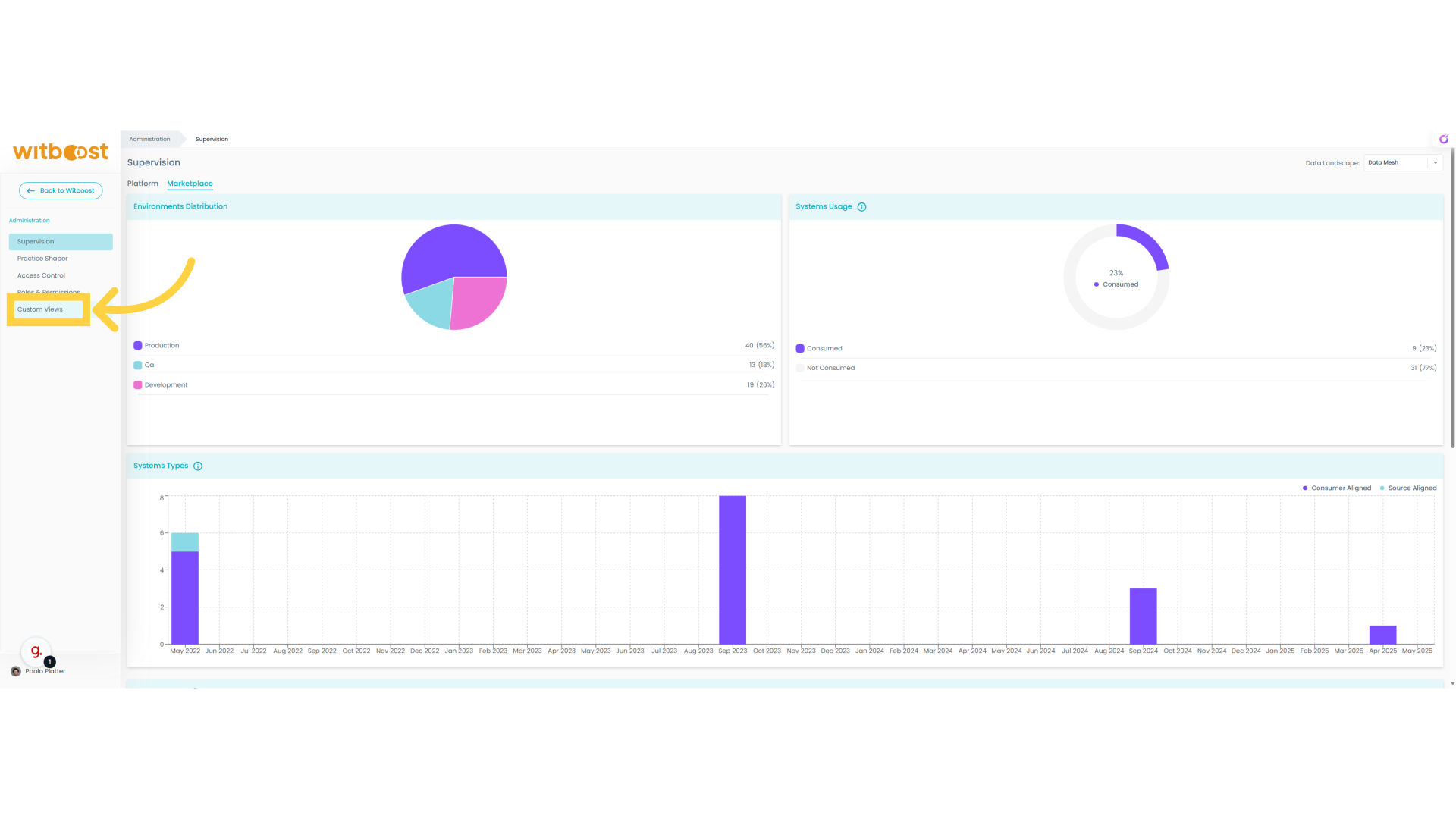
2. Click "Custom Views"
Access the "Custom Views" section.
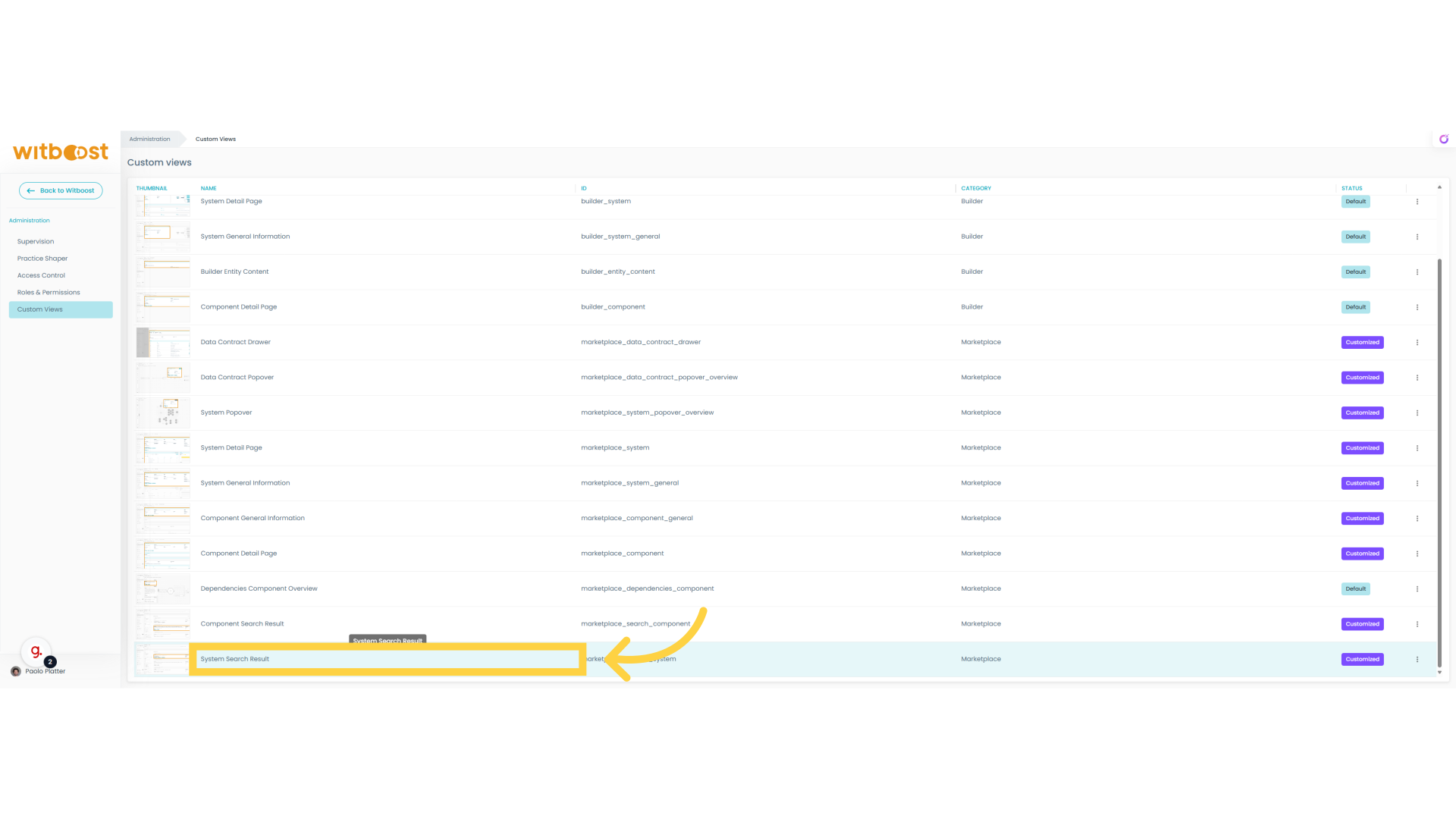
3. Custom Views
On this page, you can find all the views that can be customized. Those with the default state have never been customized and they come with a default implementation provided by Witboost. The others instead already have some customization. Let's try to customize the result of the system search.
4. Understand View Positioning
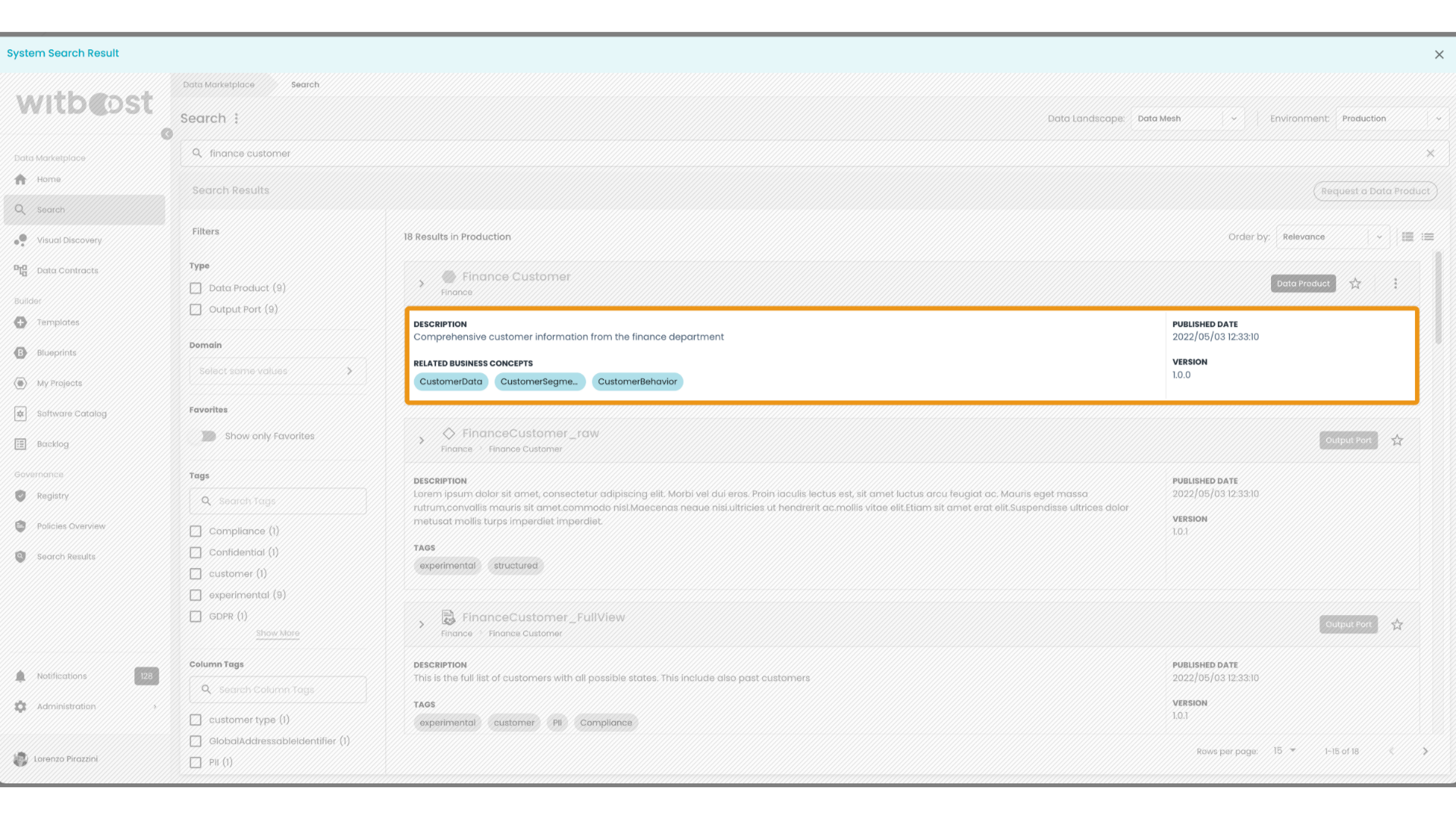
We can understand where this view is located in the application to better understand the impacts.
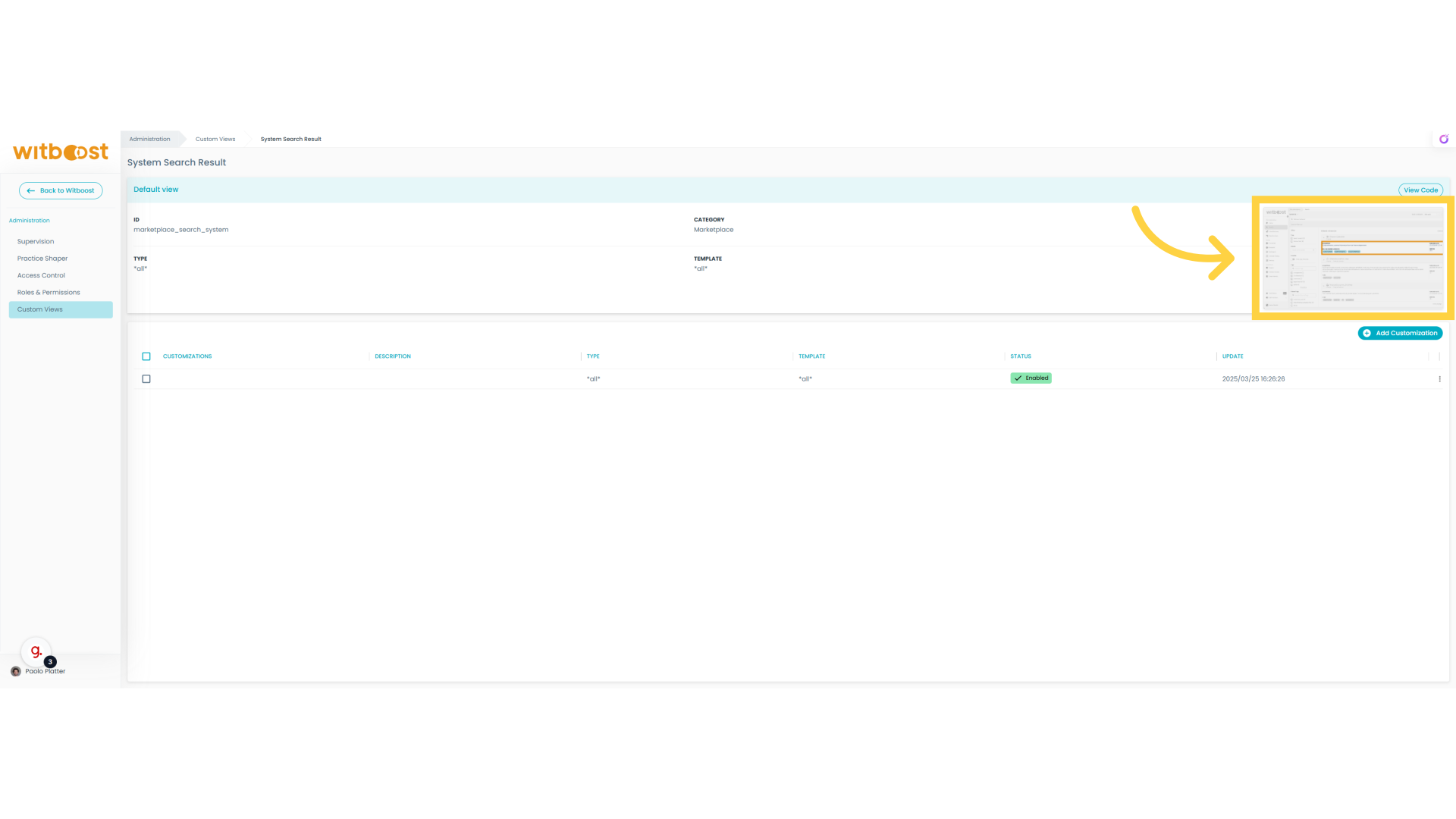
5. Location
In this case we immediately understand that this view represents a single result in the Marketplace Search
6. Customizations
We can observe there is already a customization in place, so let's open to understand better how it works
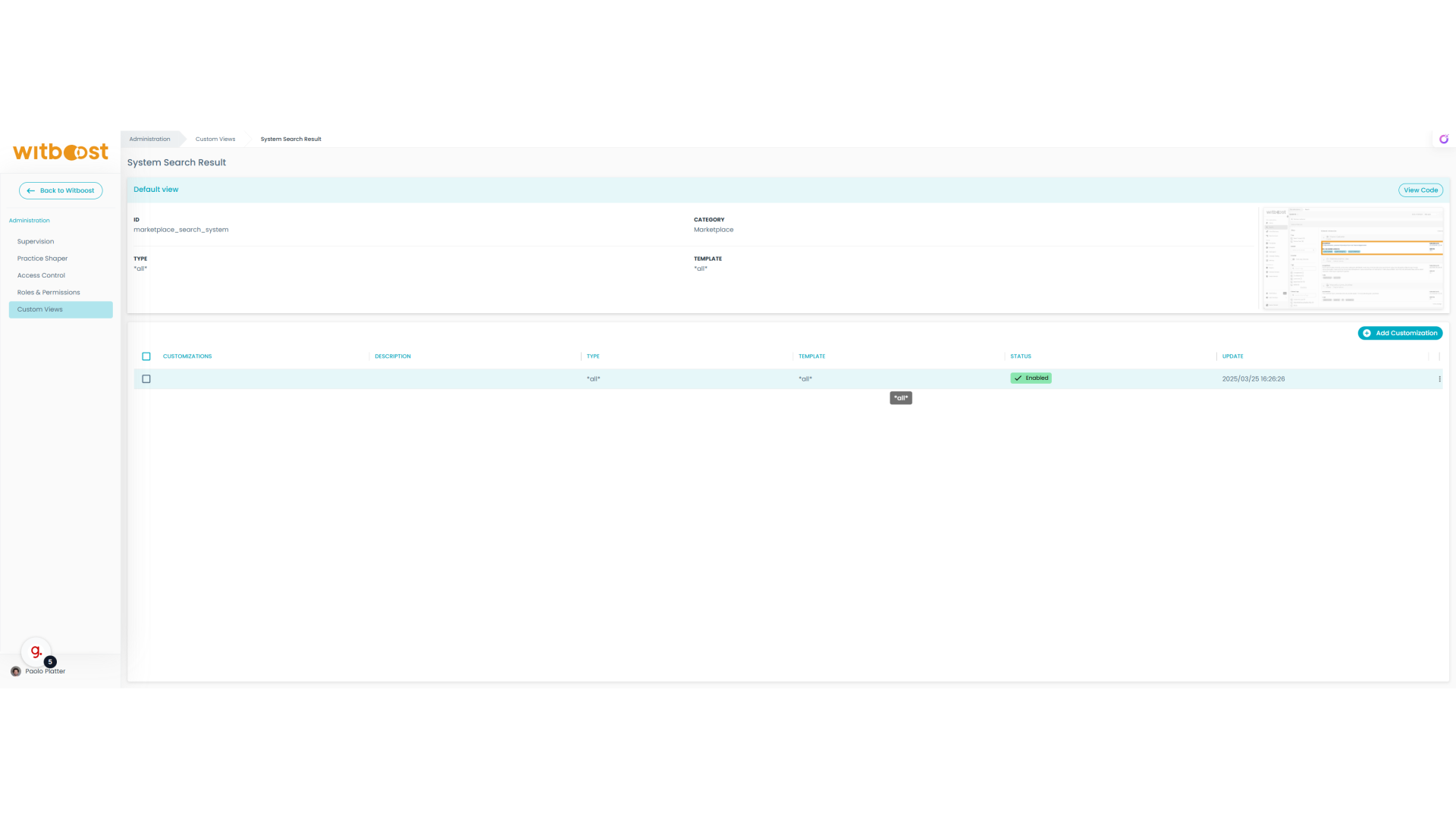
7. Customization Details
This custom view applies to all the system types defined in the practice shaper and all the defined templates, so it is very generic.
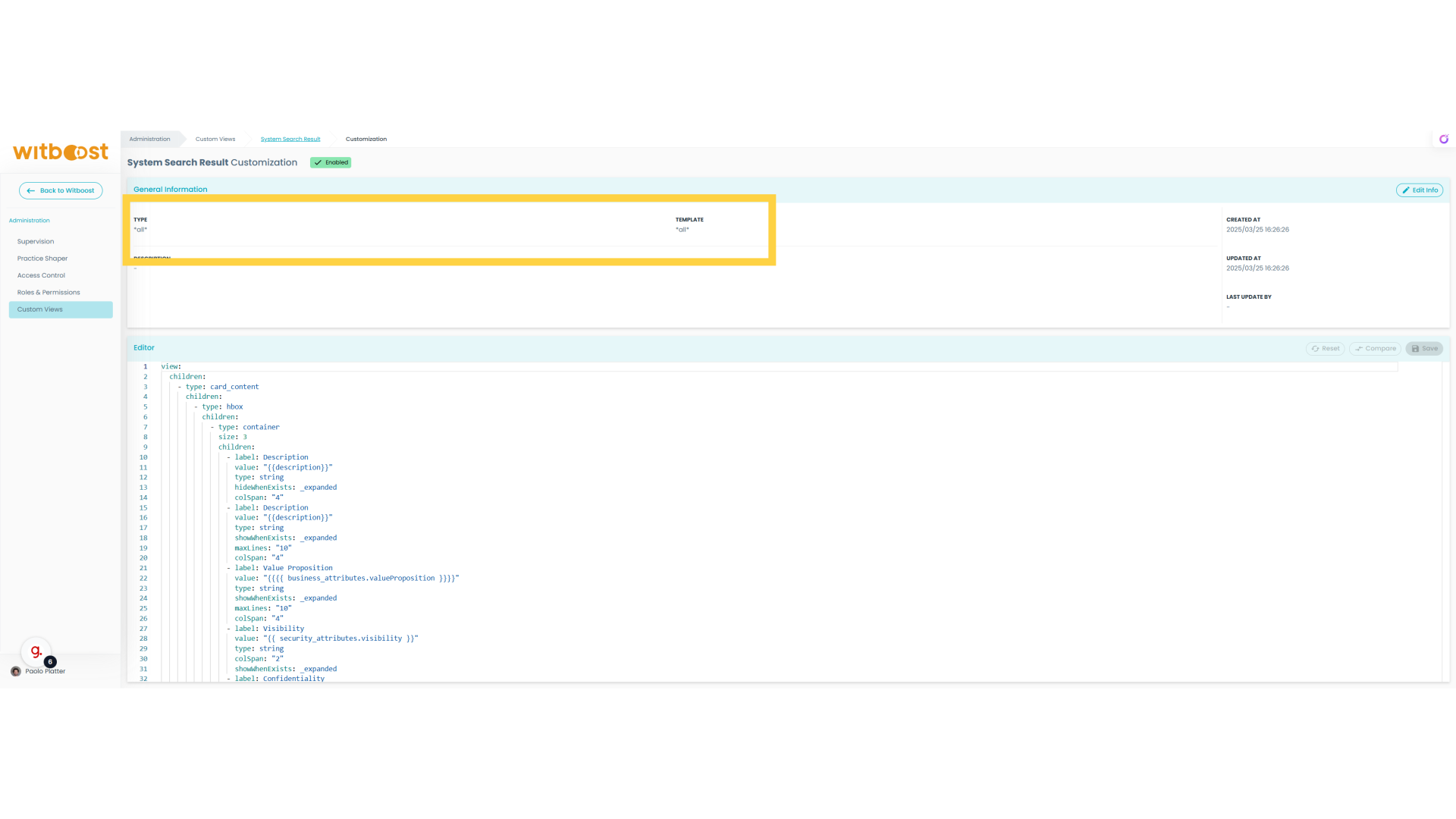
8. Add Customization
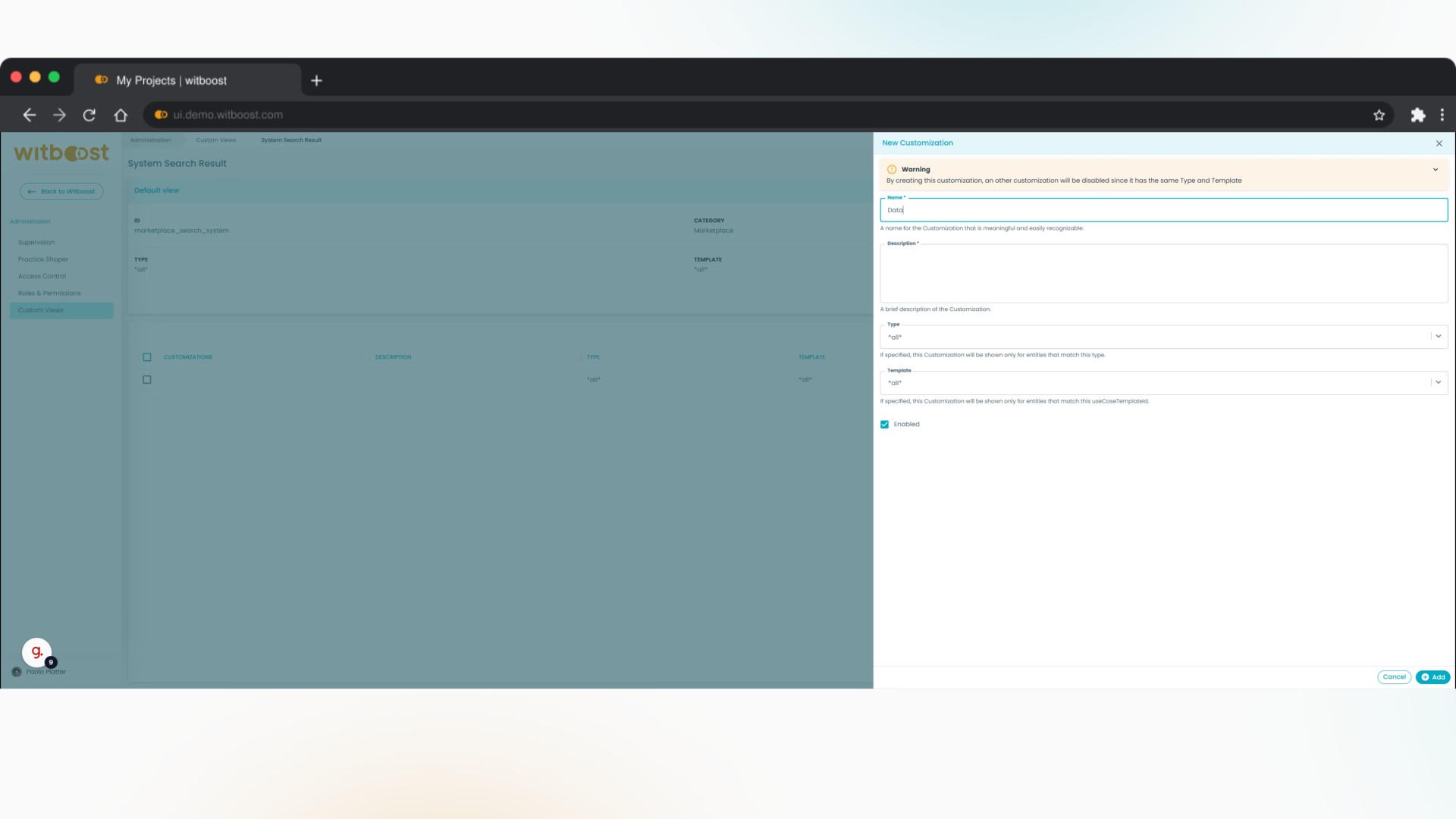
Let's try to create a custom view that is specific only for data products
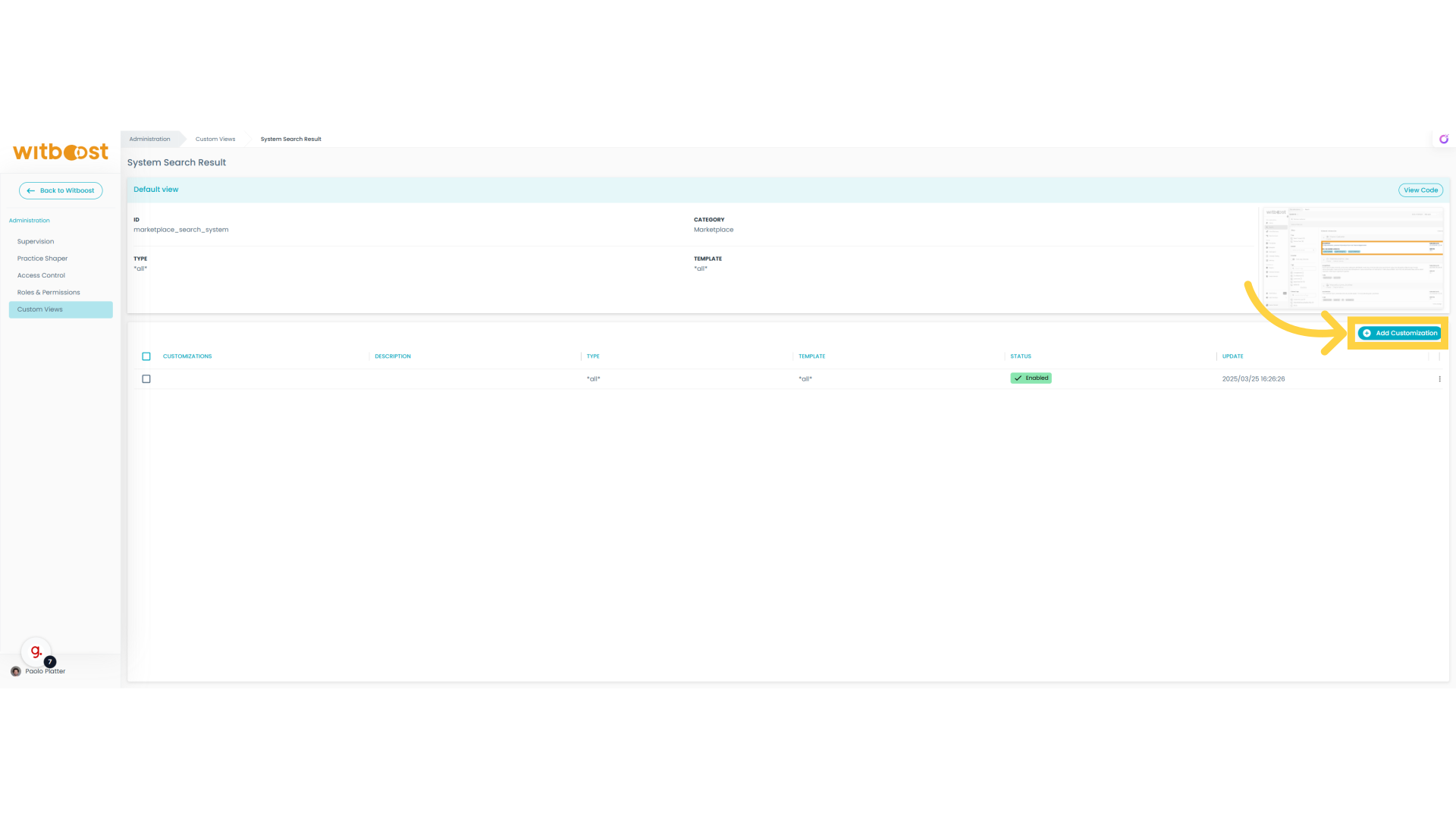
9. Fill
Let's fill some information
10. Data Product
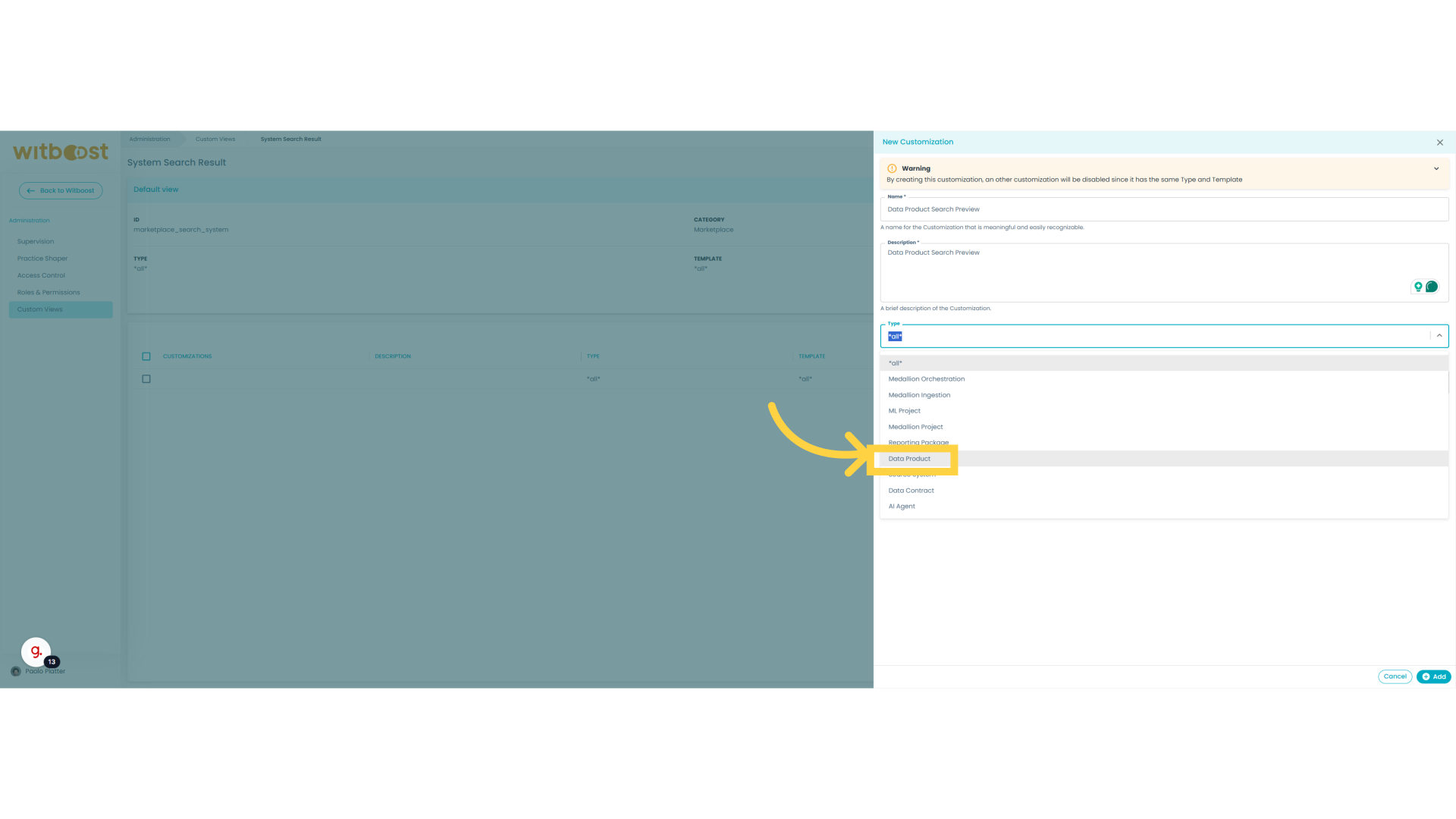
Let's also select Data Product to make this customization applicable only to Data Products and not applied in other scenarios
11. Save
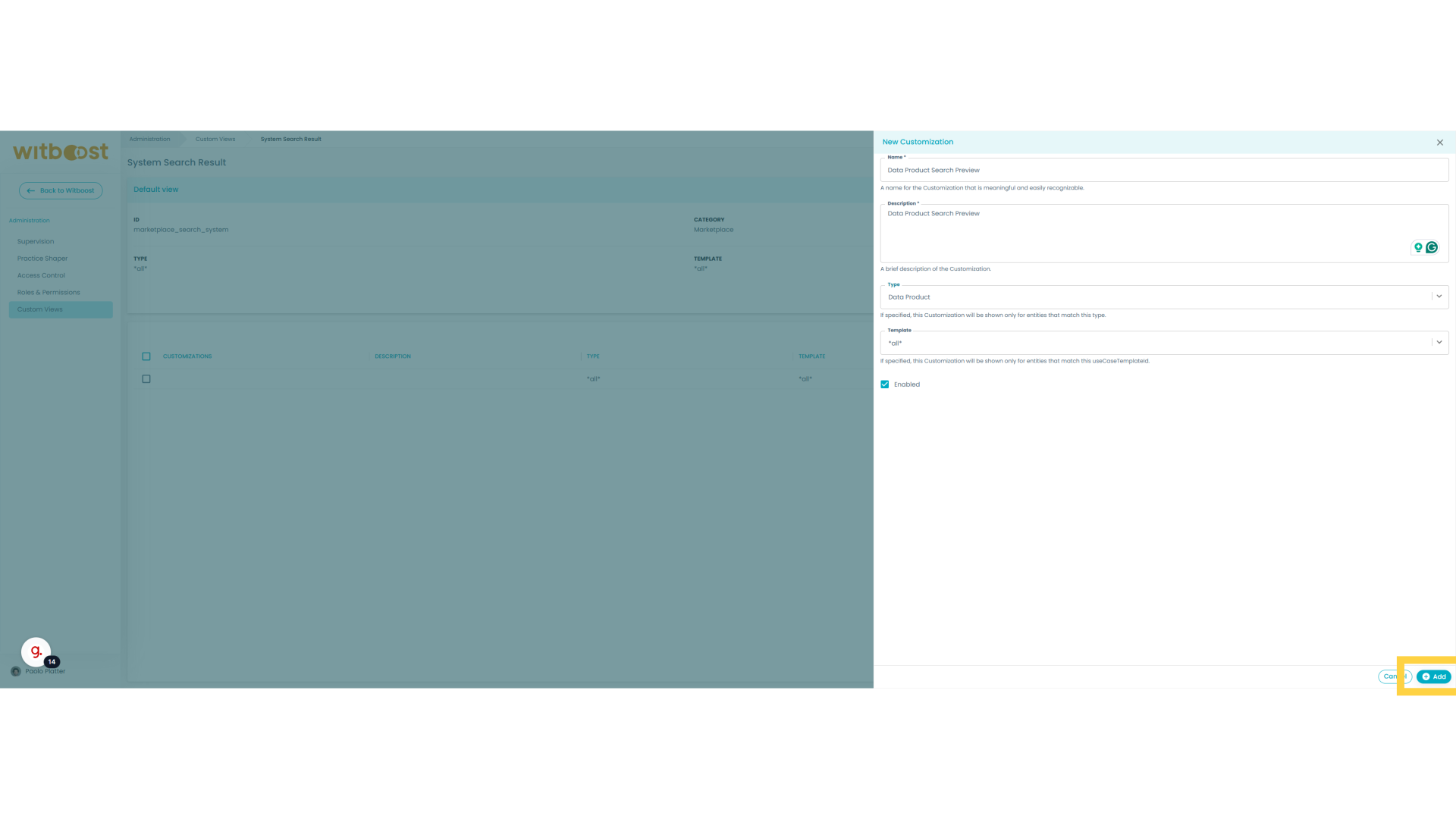
Save the customization
12. Done
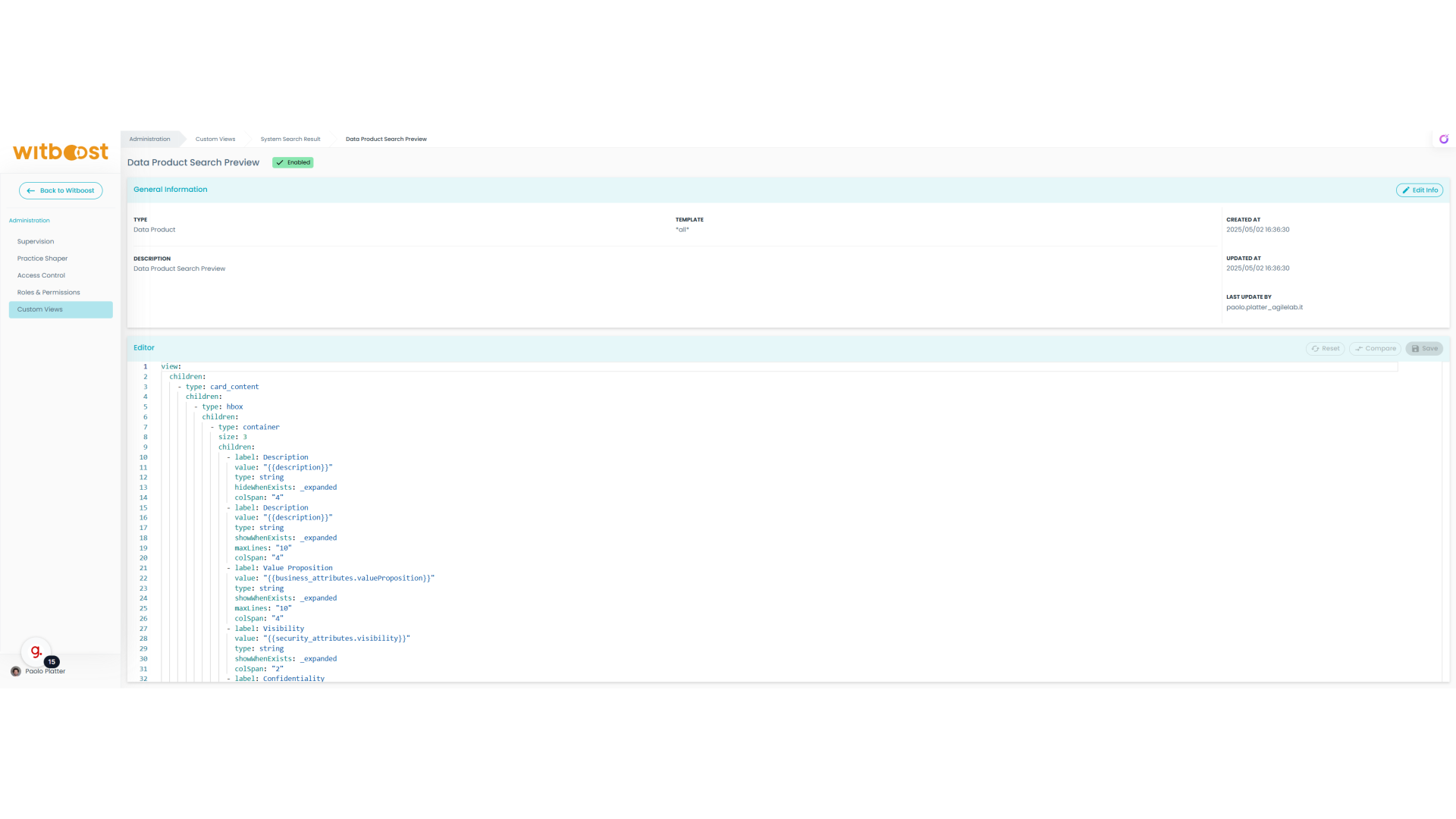
Automatically, Witboost creates the new custom view, initializing it with the previous one, so we don't start from scratch. To be able to edit and customize the custom view, we need to understand better what kind of information is currently present in this view. Let's open the Marketplace to verify these.
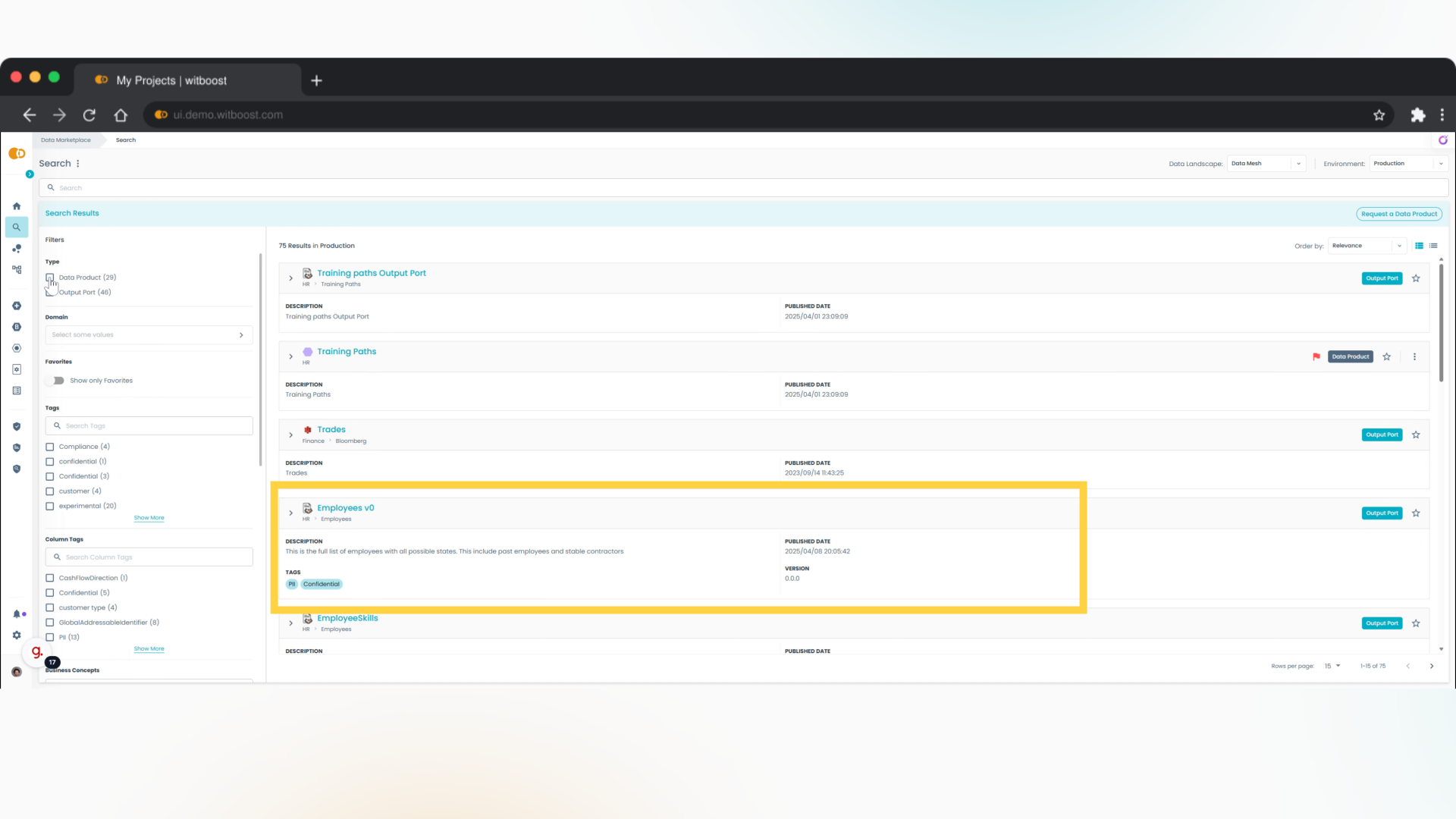
13. Displayed Info
In this moment, we can observe that the published date is one of the displayed fields, but maybe it is not that important, and we want to exchange this with the owner's information,n which instead is not available.
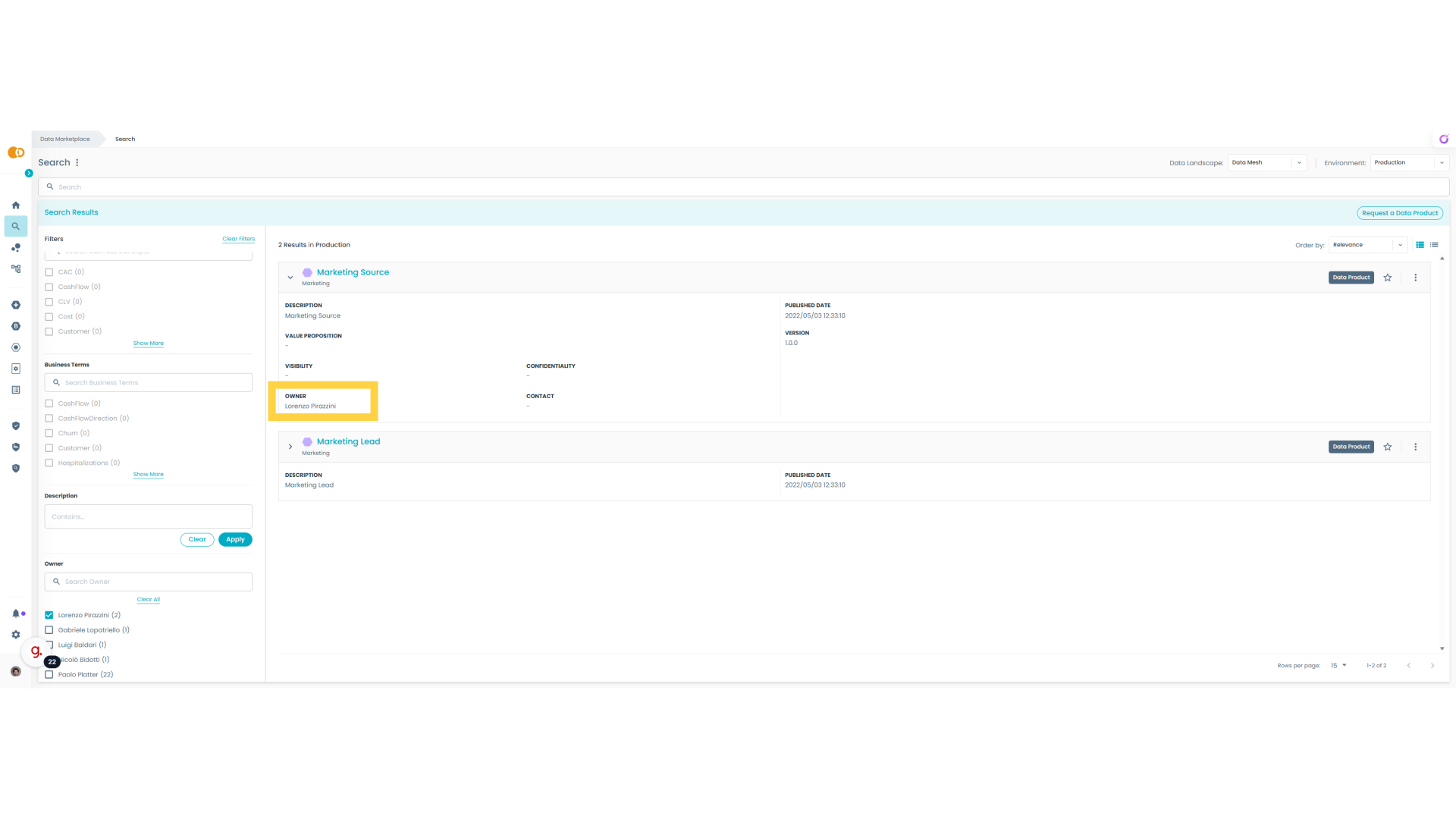
14. Extended
As we can see in reality the Owner information is already there but only visible when you expand the card, but now we want to make this info available also when the card is in compacted mode.
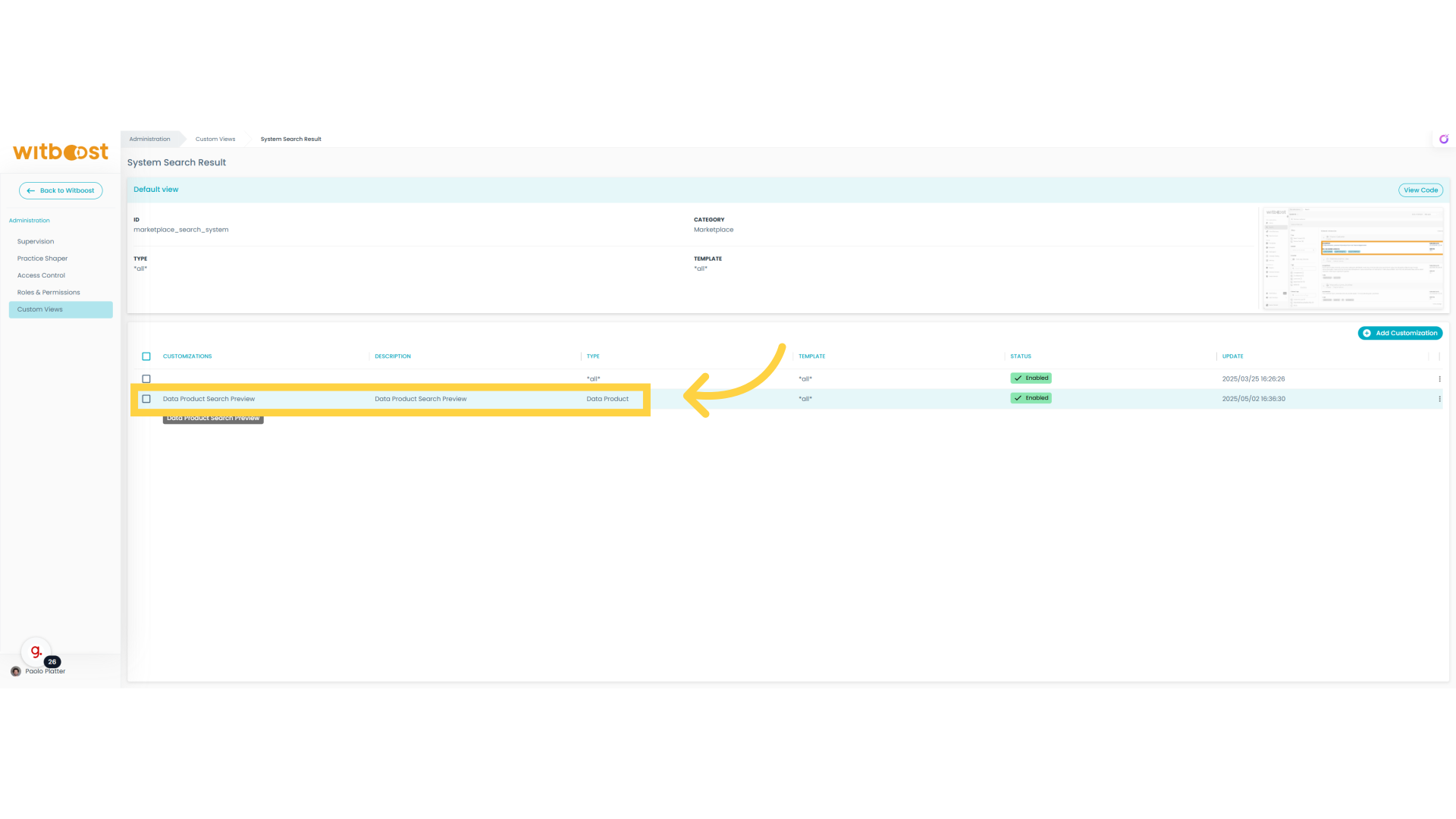
15. Edit custom view
Let's select the custom view associated to the data products
16. Owner section
Now the owner information is visible only when the card is expanded and is in the left column of the card
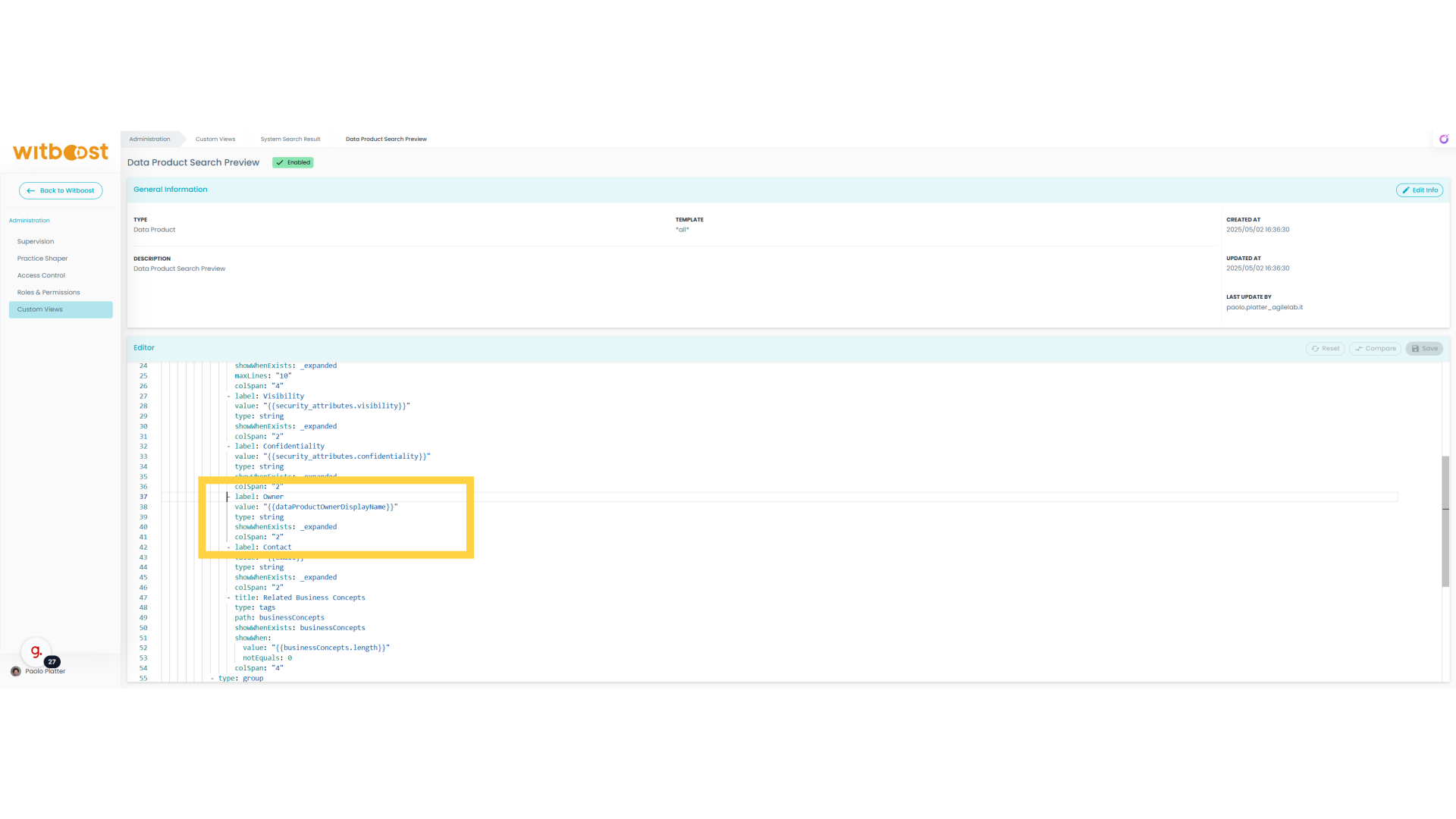
17. Edit
Let's move the owner section into the right column below the published date
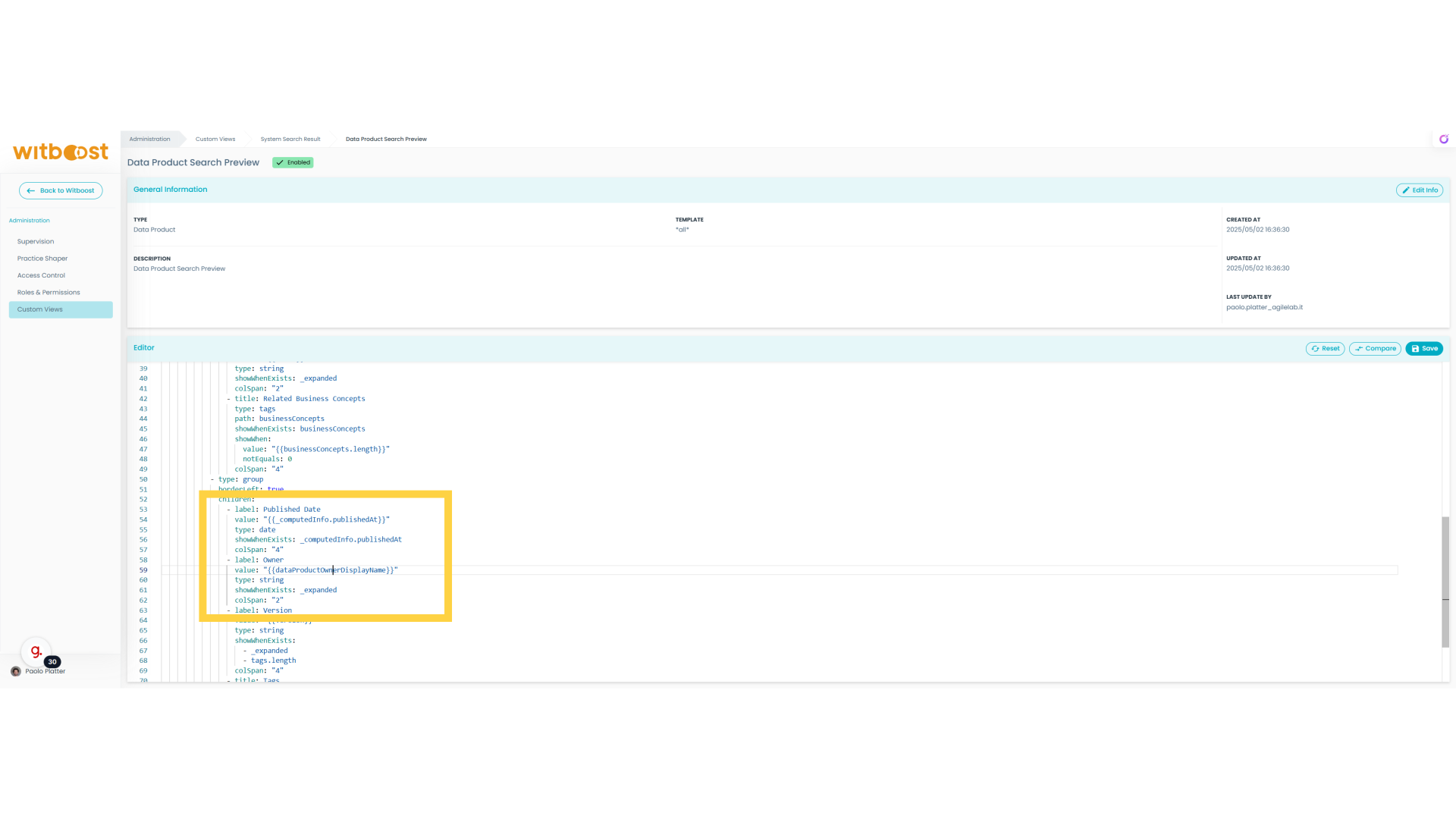
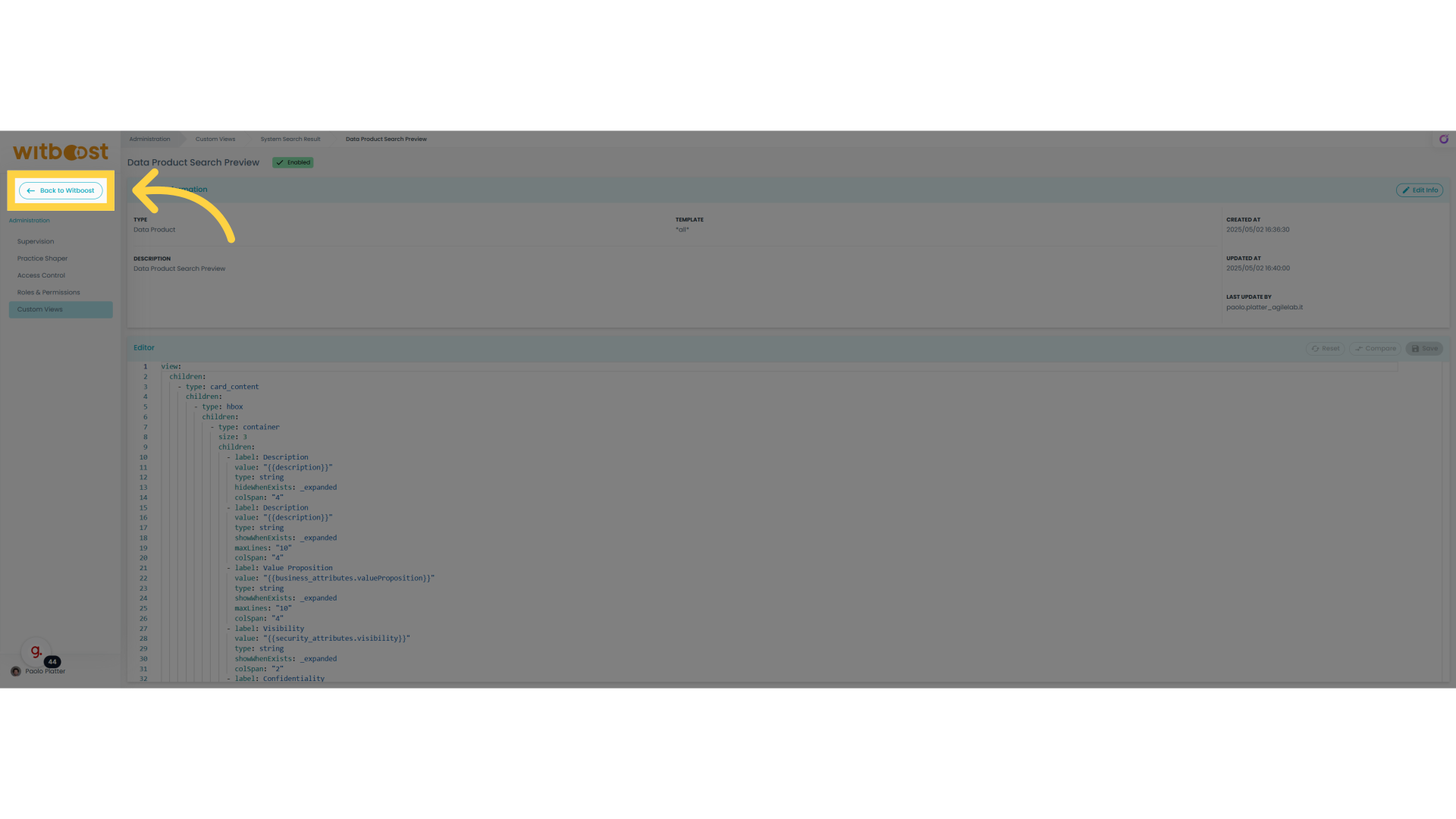
18. Remove published date
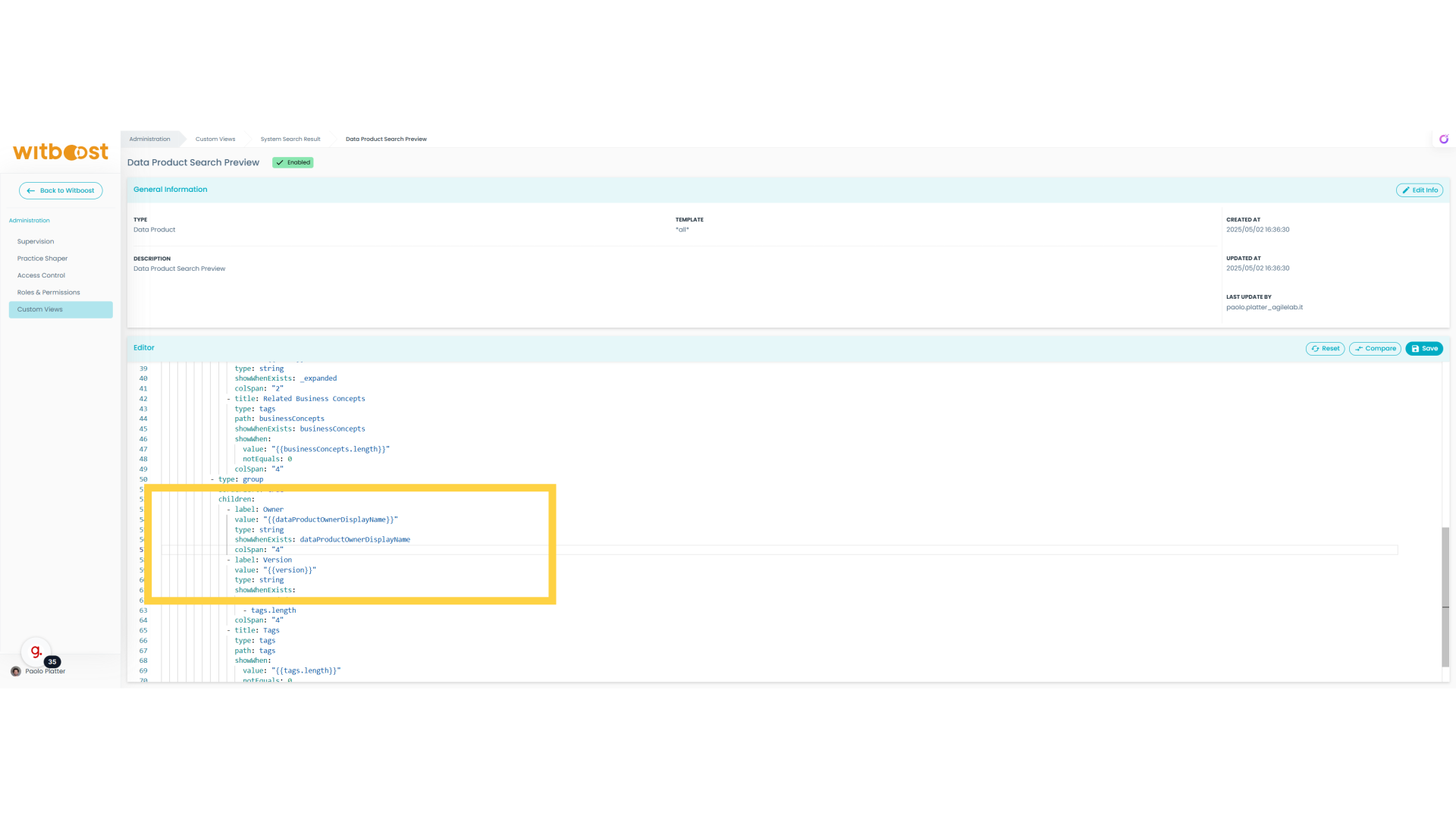
We now remove the published date and always make the owner visible when such information is present. In the Witboost documentation, you can find the full specification of this DSL. You can observe how we use binding to connect the view to the data product descriptor, so in case you modify the descriptor by adding fields or modifying the structure, it is very easy to attach the UI to your new descriptor.
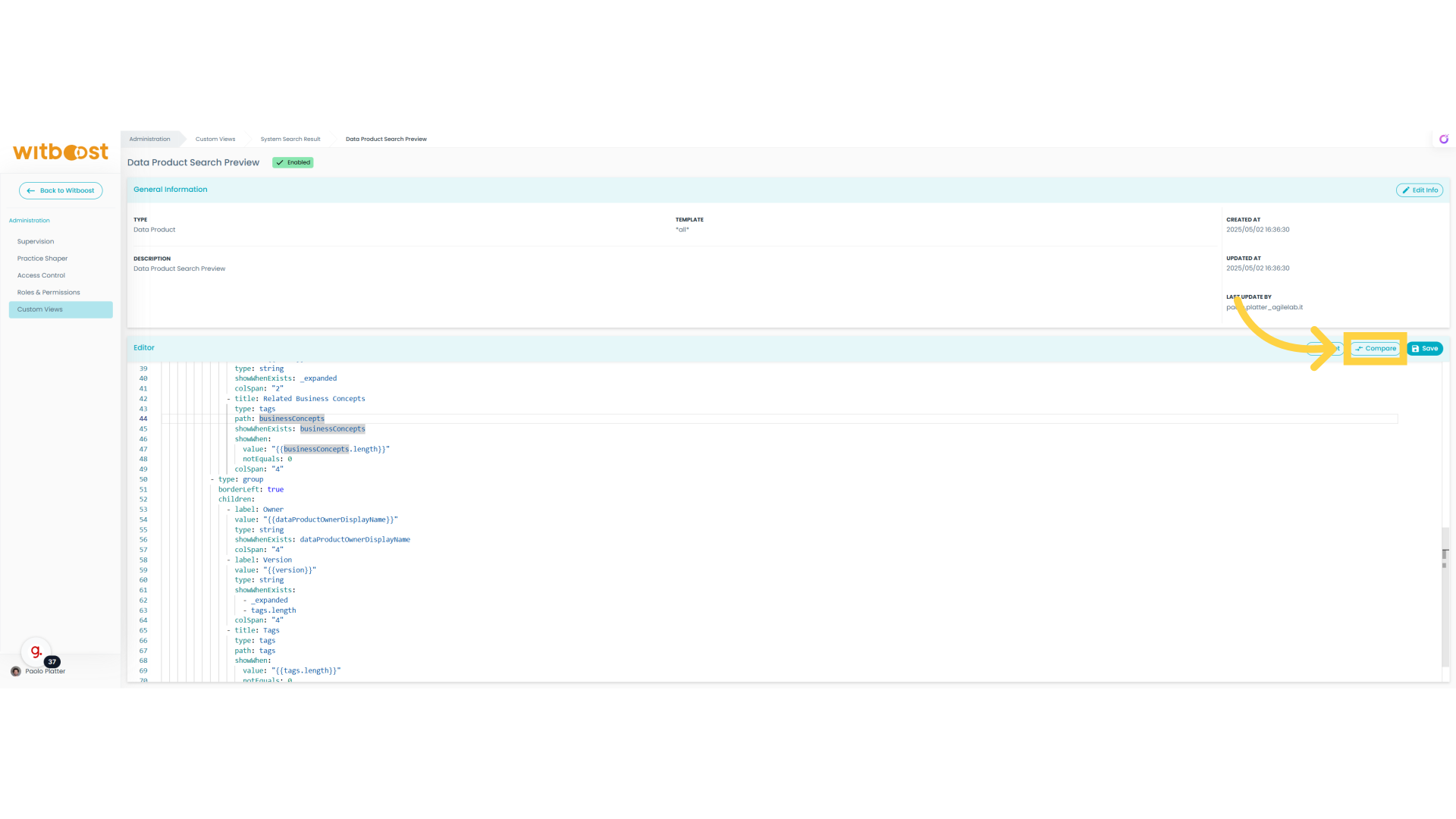
19. Click "Compare"
Let's see what we modified before saving
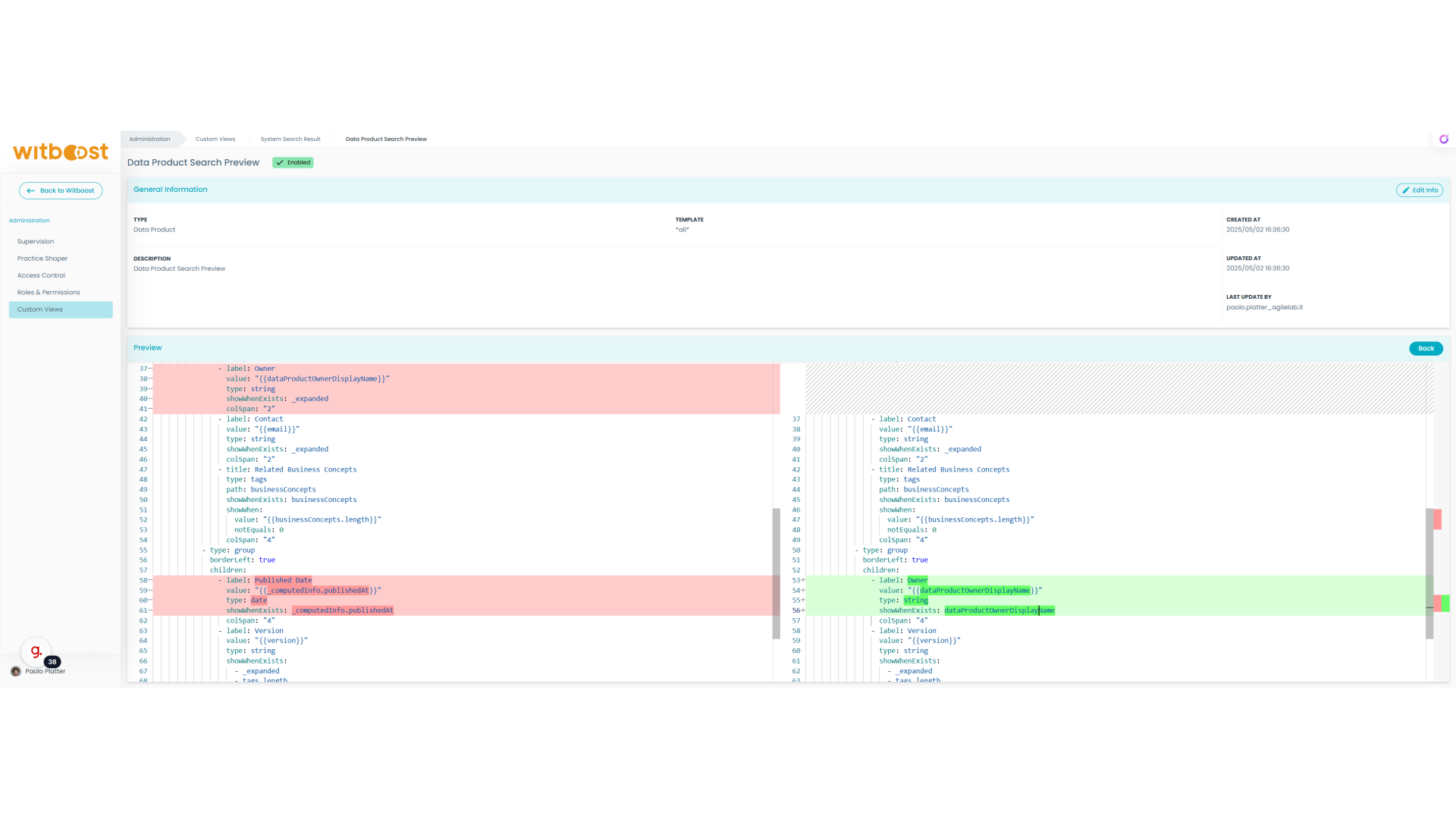
20. Comparison
Everything seems to be ok, we can save
21. Check results
Let's see what has changed in the Marketplace. All the modifications are immediate, without any deployment or other operation, making it super straightforward.
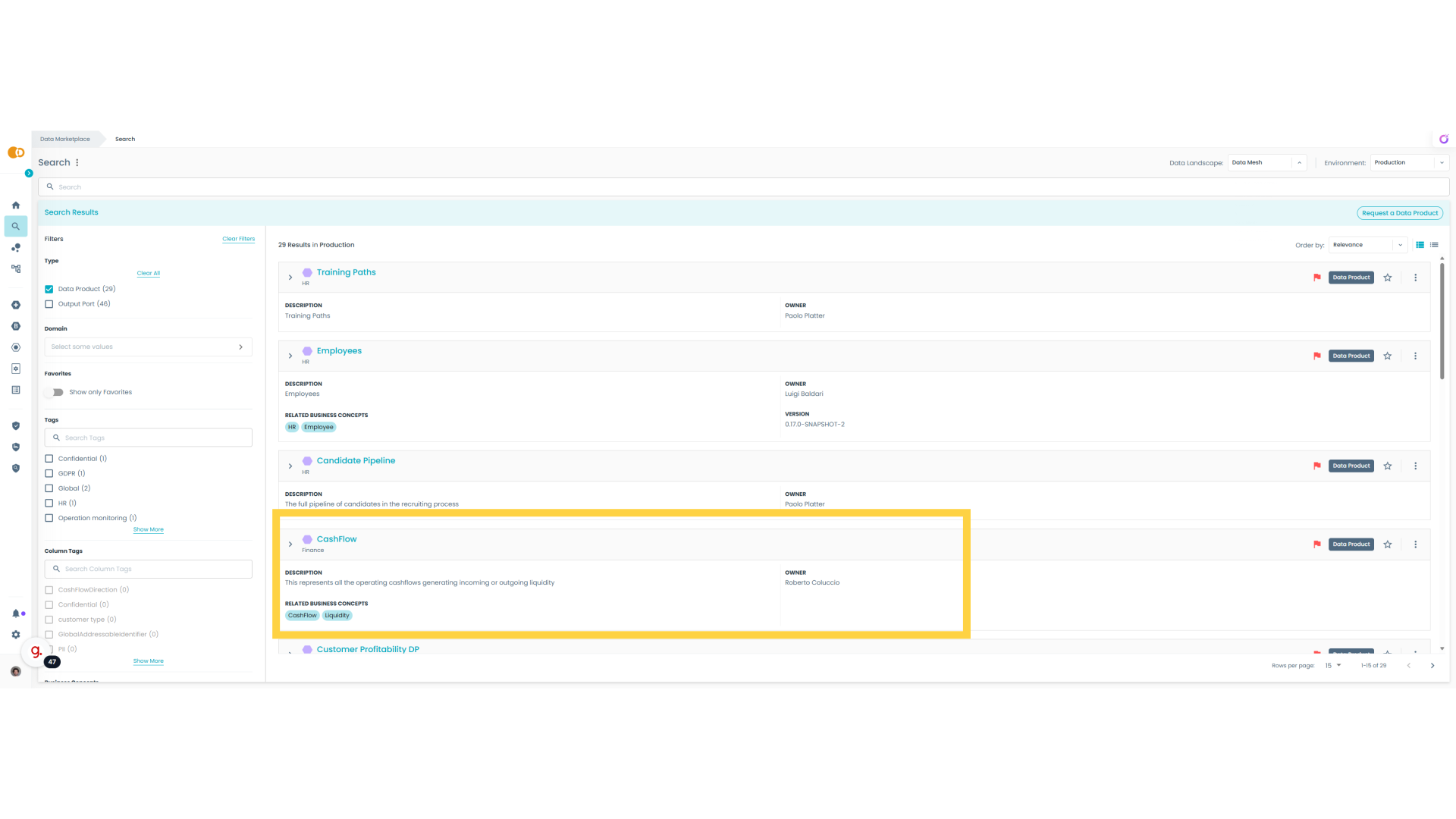
22. Data Product Search
Perfect ! Now the search preview is showing the Owner also when the card is closed and there is no published data anymore.
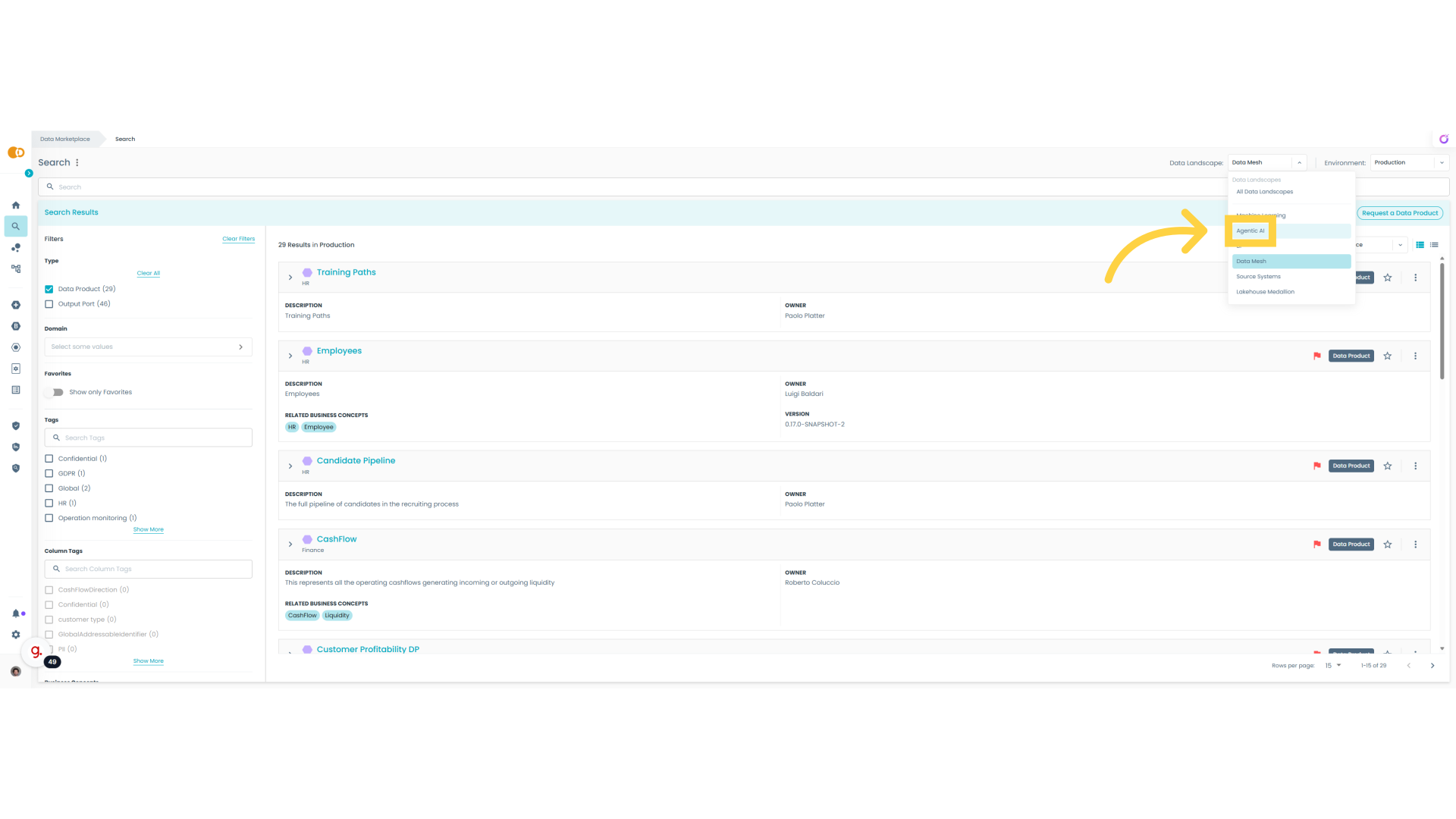
23. Other systems
All the other systems that are not Data Products should still rely on the previous customization. Let's see how Agents are rendered
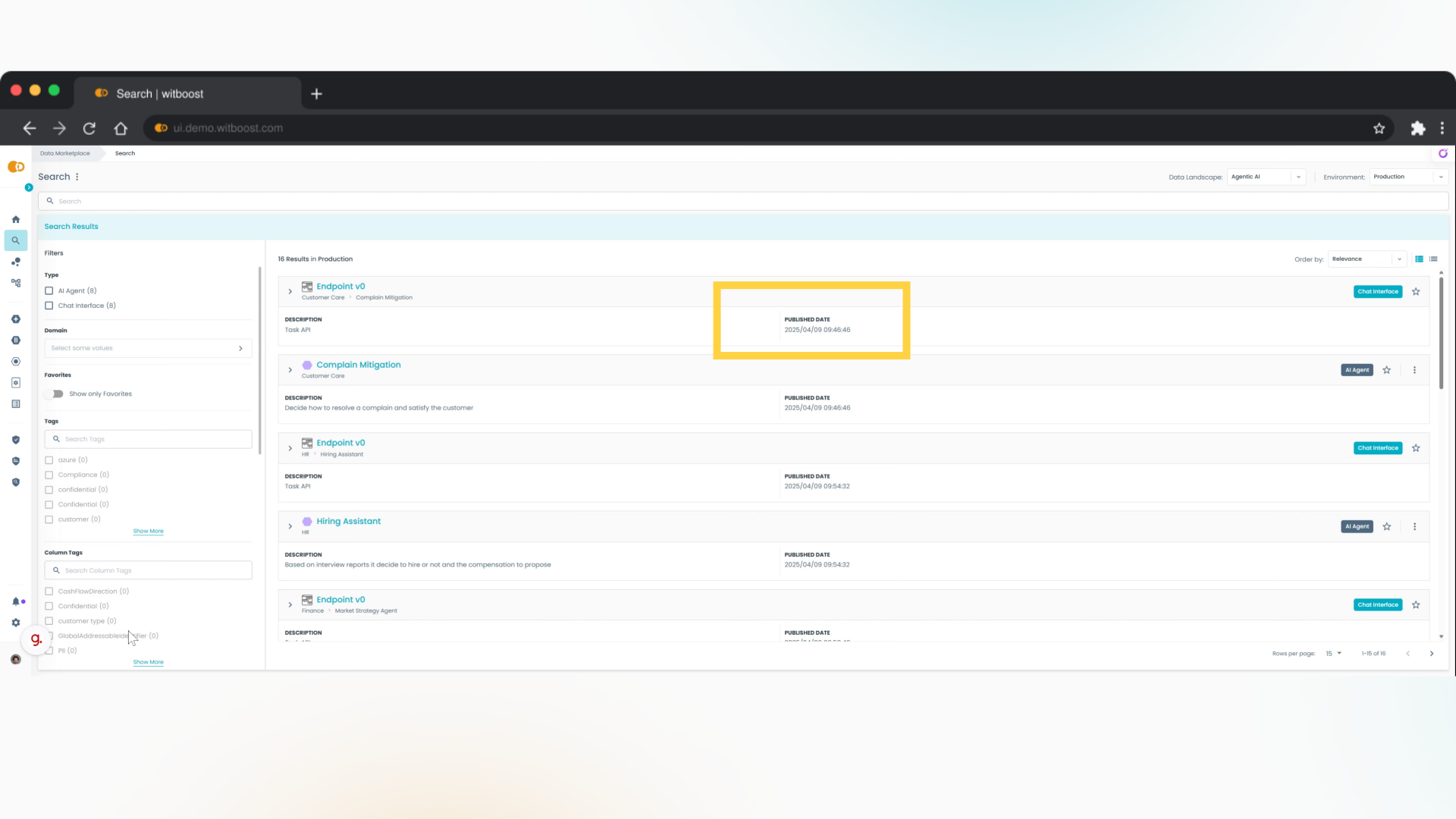
24. Agents
Fantastic, agents are still rendered by the initial custom view because they are not Data Products
This guide covered step-by-step instructions on customizing the Marketplace in Witboost, opening an infinite set of possibilities to create a unique experience for your users.